
Guide · Finding what is big
Find the Largest Files and Folders on Your Mac
When free space disappears, the fastest lead is usually the biggest things on the disk. A few items tend to account for a large share of what is used, so ranking by size gets you to the answer sooner than opening folders one at a time.
Start with what macOS already gives you
You can get a first answer without installing anything. Each method below sees the disk a little differently.
System Settings → General → Storage
A bar of categories and a total for each. Some categories, such as Documents, open into a list of large files you can sort through. Others, such as System Data, are a single figure you can’t open into files. It is a good overview and a poor way to find one specific folder.
Finder, with a size condition
Press ⌘F in a folder, change the first criterion to Other…, pick File Size, and choose “is greater than” a size such as 1 GB. This lists individual files only. In a list-view window, View → Show View Options → Calculate all sizes adds folder totals, one folder at a time.
Terminal
Folder totals, sorted, one level deep:
du -h -d 1 ~ | sort -h | tail -20Repeat inside the biggest folder to go one level lower. macOS may ask permission for protected folders, or skip them, so the list can be incomplete without telling you.
All three work. The friction is that each answers one narrow question: a file, a folder total, a category. They don’t connect, so you end up stitching the picture together yourself. A disk space analyzer exists to do the stitching.
Files vs folders: why both matter
Some space is held by single large files: a screen recording, a disk image, an archive, a virtual machine. A size search finds those immediately.
A lot of space isn’t like that. A project’s dependency folder, an app’s cache or a mail store can hold hundreds of thousands of small files, none of them large on its own. A “files over 1 GB” search never sees them. Only the folder total shows what they add up to.
Some things also look like one file but are folders: a Photos library, an app bundle and an iPhone backup are each a single item in Finder that holds many thousands of files.
The Largest Items list in Diskuse Me
Diskuse Me scans a disk or any folder you choose, then ranks what it found. Below the storage map, Largest Items lists the biggest things in whatever you are looking at, with size, purpose, location and last-modified date. Switch between All Items, Files and Folders, set a minimum size, or search the scan by name.
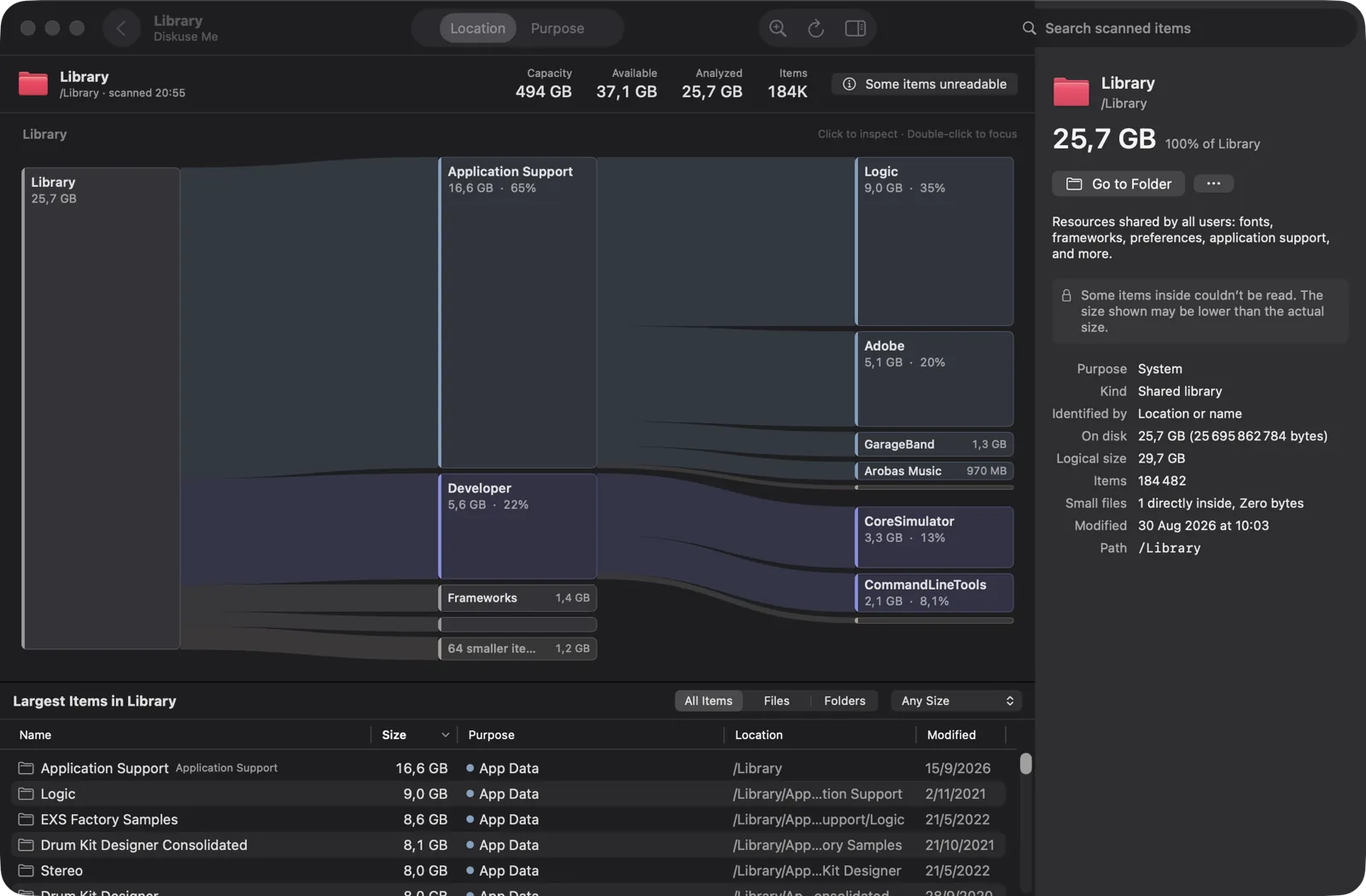
/Library. The inspector on the right explains the selected folder and offers Go to Folder.Notice how the list reads. A folder’s size includes everything inside it, so in All Items the same bytes appear at several levels: Application Support at 16.6 GB, then Logic (9.0 GB) inside it, then folders inside Logic. That is correct, just not additive. Use Folders to follow the hierarchy and Files when you want the individual files with the parents out of the way.
When the largest thing isn’t an obvious file
The top of a size ranking is often a folder with an unfamiliar name: CoreSimulator, Containers, Application Support, a hidden folder in your home directory. Knowing it is big doesn’t tell you what it is, or whether it will come back.
That is the gap the Purpose column fills. Diskuse Me recognizes common data and says what it belongs to, in plain words: development storage such as Xcode build data and simulators, Docker and other container storage, Unity editors, package-manager caches, local AI models, photo libraries, device backups, app data and caches. Something it can’t identify stays in Other instead of being guessed at.
In the screenshot above, CoreSimulator and CommandLineTools sit inside /Library/Developer. Names like these are what the Purpose view is for: switching to it regroups the same bytes by what they are, so you can ask “how much of this disk is development data?” as easily as “which folder is biggest?”.
Open it in Finder, then decide
Go to Folder reveals the selected item in Finder. Diskuse Me never deletes, moves or edits anything, and it doesn’t label items “safe to delete”. Big and old is useful context, not a verdict. Some of what ranks highest is data an app expects to find, and the app that owns it, Xcode or Docker for instance, is often the better place to remove it.
One more honesty note: if macOS blocks a location, Diskuse Me says so (“Some items unreadable”) and the size shown may be lower than the real one. A ranking is only as complete as what could be read.
For the bigger picture, see what usually takes up space on a Mac, or how Location and Purpose work together in a disk space analyzer.
See what is big on your Mac
Scan a folder or a disk, rank the largest items, and see what each one belongs to. Read-only: nothing is changed or deleted.
Download on theMac App StoreFree to download · Diskuse Me+ is an optional one-time upgrade · macOS 15 or later