
Guide · Choosing a disk space analyzer
A Clear Mac Disk Space Analyzer
A disk space analyzer scans a drive or folder, adds up what is inside, and shows where the space went. Diskuse Me does that, then goes a step further: it explains what the data belongs to, and remembers what the disk looked like last time.
See where your disk space went
Storage settings tell you how much of your Mac is Documents, Photos or System Data. An analyzer answers the next question: which folders and files make up that number? It reads the size of everything in the scan and lays it out so the biggest areas are visible at once.
A map of boxes or rings is what nearly every tool in this category draws, so it isn’t what separates one from another. What matters is what you can do once you have the picture:
- Honest coverage. Does it tell you what it could not read, or quietly show a smaller total?
- Meaning. Does it say what a folder is, or only where it is?
- Memory. Can it tell you what grew since the last time you looked?
- Control. Does it inspect, or push you towards deleting?
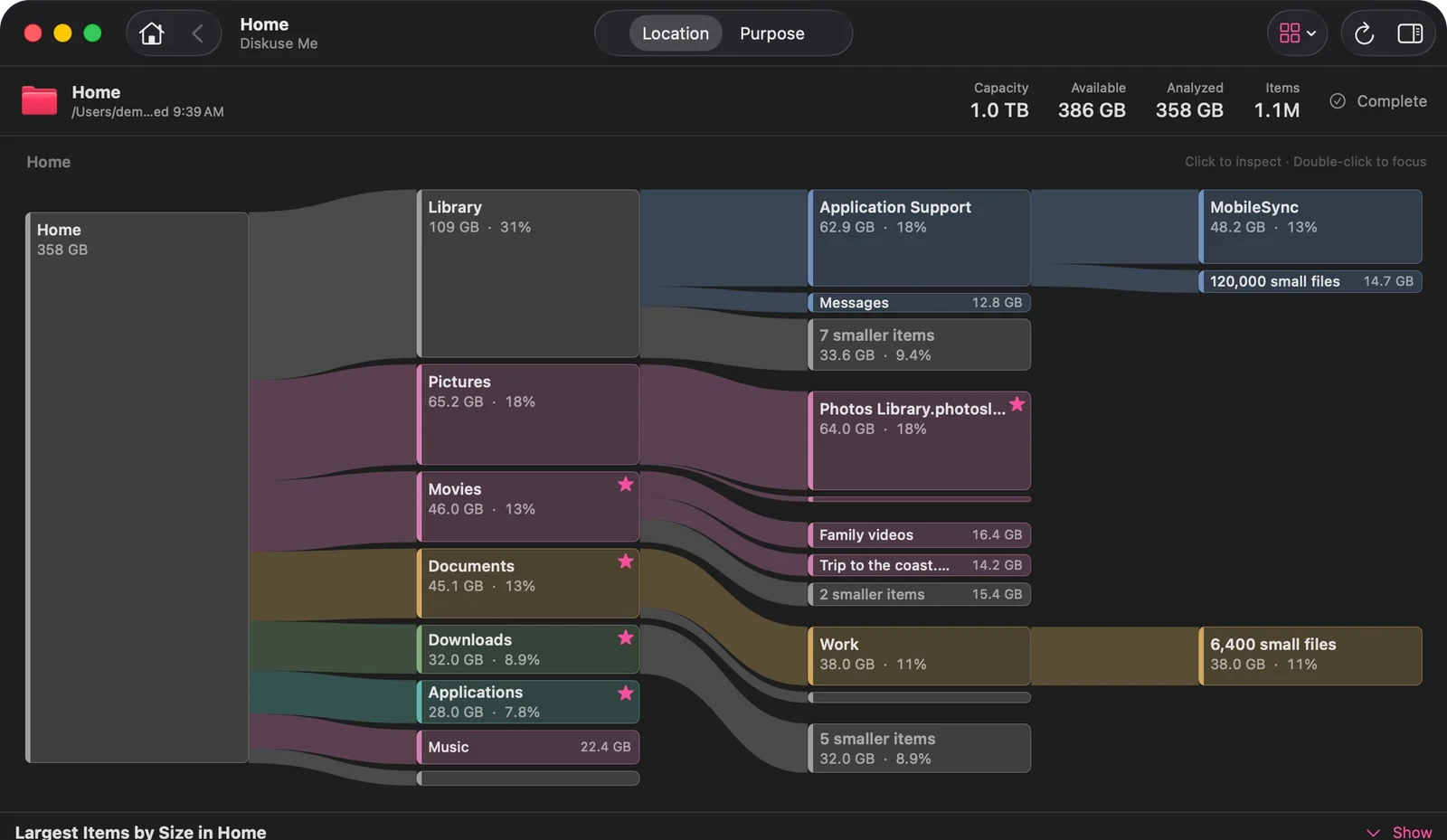
Location tells you where
The Location view is the actual filesystem. Each column is one level deeper: Home, then Library and Pictures, then what is inside them. Click a block to inspect it, double-click to focus on it, and step back out the same way. Capacity, available space and analyzed size sit side by side at the top, with a note when part of the scan was unreadable.
This is the view to use when you already know roughly where to look, or when you need an exact path to hand to Finder.
Purpose tells you what it belongs to
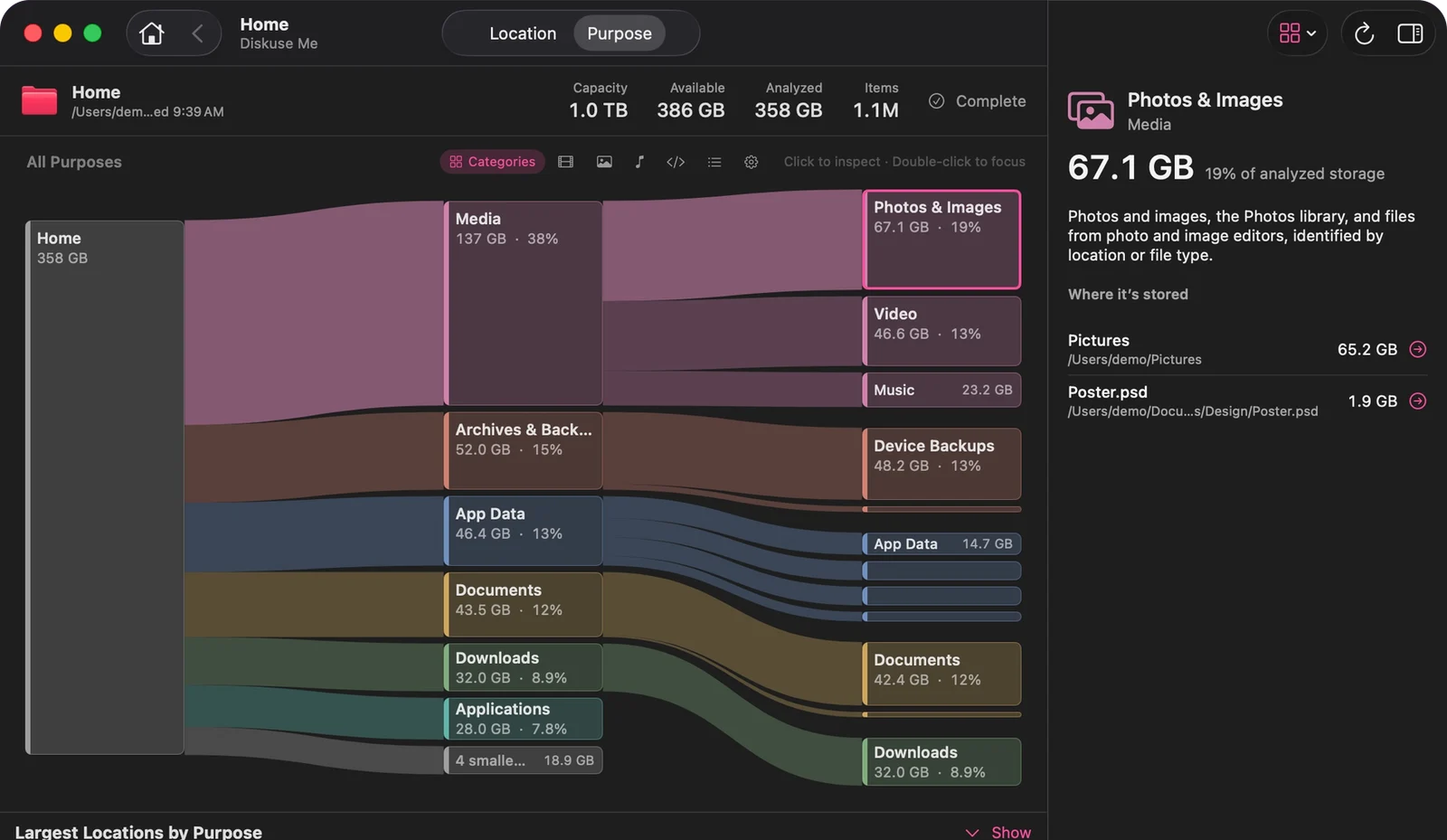
A path such as ~/Library/Containers/… says where. It rarely says what. The Purpose view regroups the same bytes by what they are for: media, archives and backups, app data, documents, downloads, applications, caches, development files, system data and more.
Diskuse Me recognizes well-known storage, including Xcode build data and simulators, Docker and other container tools, Unity projects, package-manager caches such as Homebrew and npm, and local AI models, and explains each in a sentence. Anything it can’t identify stays under Other. Recognition is deliberately conservative; it doesn’t guess.
Nothing on disk moves when you switch. Location and Purpose are two readings of one scan.
Find the largest items
Under the map, a sortable Largest Items list ranks the biggest files and folders in the current scope, with filters for files, folders and a minimum size. Search covers names and recognition, so a search for “xcode” also finds DerivedData. The guide to finding the largest files on a Mac covers the list, and the manual alternatives, in more detail.
See what changed
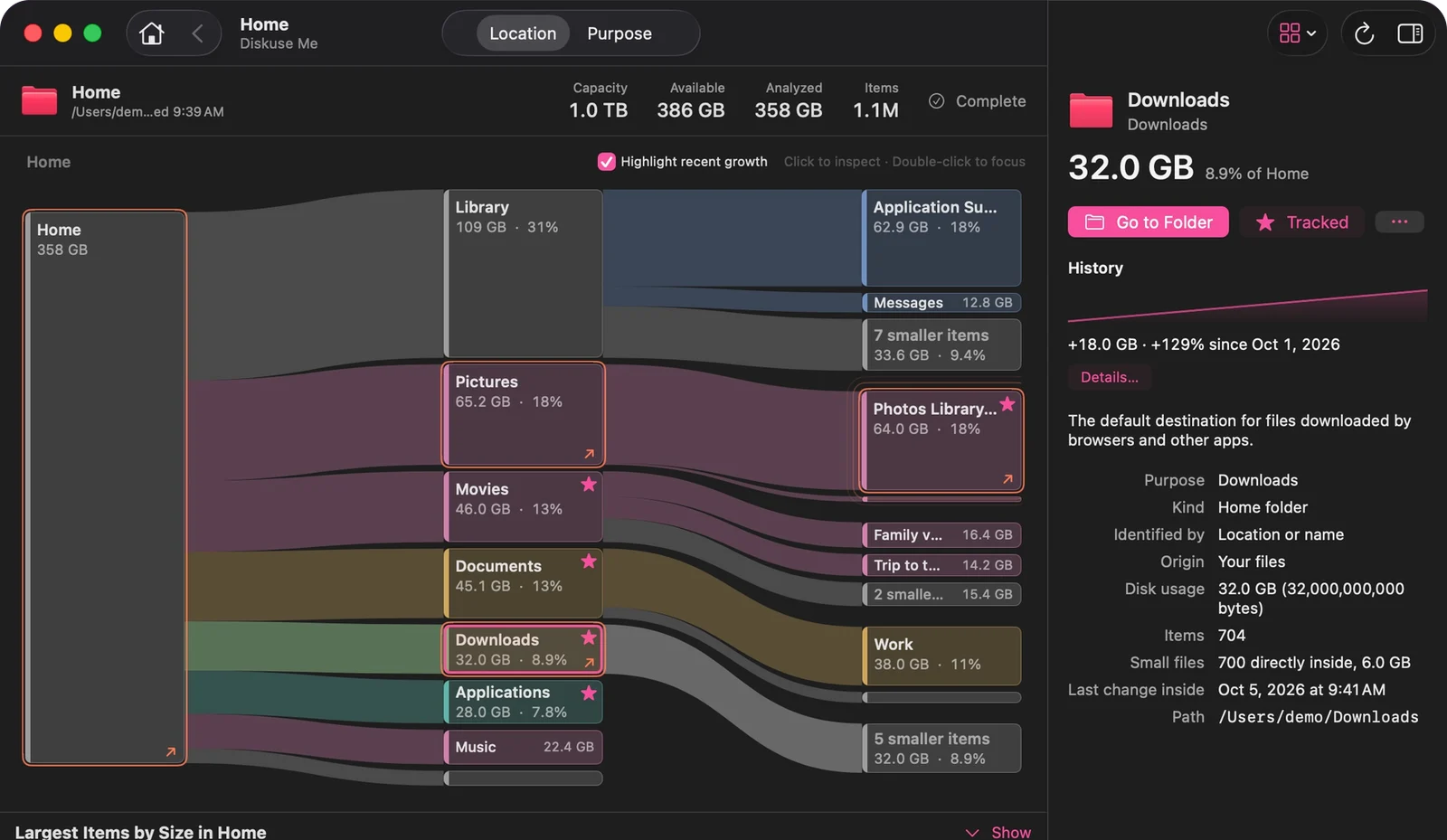
Most analyzers give you a snapshot. Diskuse Me keeps a history for each location you scan, so the next scan can be compared with the previous one. Turn on Highlight recent growth and the folders that grew are marked, such as “+18 GB since Oct 1”. Drill down and you reach the item that grew, not just the folder that contains it.
It compares the scans you run. It doesn’t watch your disk in the background. The free version compares with the previous successful scan and keeps the latest two scans per location; Diskuse Me+, an optional one-time upgrade, keeps longer history, adds 1-, 3- and 7-day growth ranges and can refresh tracked locations on a schedule while the app is open.
Nothing is automatically deleted
Diskuse Me is read-only. It has no cleanup button, no “reclaimable space” figure and no safe-to-delete labels. Go to Folder opens the item in Finder and the decision stays with you. Analysis happens on your Mac, with no account and no analytics.
That also marks what it isn’t: not a cleaner, not security software, not a disk repair or recovery tool, and it can’t read what macOS keeps protected. If you want an app that deletes for you, another tool fits better. If you would rather understand first, this one is built for that. Compare it directly with DaisyDisk or GrandPerspective.
See your Mac storage with Diskuse Me
Location for where, Purpose for what, history for what changed. Native, read-only and local.
Download on theMac App StoreFree to download · Diskuse Me+ is an optional one-time upgrade · macOS 15 or later · Apple silicon & Intel