
Guide · Storage full
What Is Taking Up Space on Your Mac?
Every Mac fills up differently. A photographer’s disk is mostly one library, a developer’s is mostly build and container data, and a laptop that has been around for years usually carries a bit of everything. The way to find yours is to measure it rather than guess.
Start with what you can actually inspect
Open System Settings → General → Storage. It gives you the shape of the problem: how much is Applications, Documents, Photos, Messages, iCloud Drive and the catch-all System Data. Apple’s own guide, Free up storage space on your Mac, covers the built-in recommendations.
What that screen can’t do is show you the folders behind a category. To find those you need a scan that reads the actual files and folders. Three questions are worth answering, in this order:
Where is it?
Which folders hold the bulk of the used space. A handful of locations usually account for most of it.
What does it belong to?
A folder name such as
com.docker.dockerorMobileSyncmeans nothing until you know which app or device created it.Has it been growing?
A 40 GB folder that has sat at 40 GB for a year is a different problem from one that gained 15 GB this month.
Large files are only part of the story
Sorting files by size finds the obvious things, like a long video or an old installer. A lot of lost space isn’t a large file at all but a very large number of small ones, in places Finder doesn’t show by default. This table lists common sources, where they usually live, and why they grow. Locations vary by setup, so treat it as a map of where to look, not a promise.
| Source | Where it usually lives | Why it grows |
|---|---|---|
| iPhone and iPad backups | ~/Library/Application Support/MobileSync/Backup | One full backup per device, kept until removed. |
| Messages | ~/Library/Messages | Photos, videos and attachments from years of chats. |
| Photos library | Usually ~/Pictures/Photos Library.photoslibrary | Originals plus derived copies; Finder shows it as one item. |
| Downloads and archives | ~/Downloads, plus wherever you keep .dmg and .zip files | Installers and archives outlive their purpose. |
| App caches | ~/Library/Caches | Apps rebuild them as you work; some keep a lot. |
| Xcode and simulators | ~/Library/Developer/Xcode, ~/Library/Developer/CoreSimulator | Build data, archives, device support files and simulator runtimes accumulate across versions. |
| Docker and containers | Inside ~/Library/Containers/com.docker.docker for Docker Desktop | Images, volumes and build cache sit in one large disk image. |
| Package-manager caches | ~/.npm, ~/.gradle, ~/.cargo, Homebrew’s cache under ~/Library/Caches | Every version ever fetched can stay cached. |
| Unity | Editors under /Applications/Unity/Hub, plus each project’s generated folders | One editor install is large; several versions multiply it. |
| Local AI models | For example ~/.ollama, ~/.cache/huggingface, ~/.lmstudio | A single model is often several to tens of GB. |
App and developer data can grow quietly
None of the entries above announce themselves. A simulator runtime gets installed with an Xcode update. A container image is pulled once and forgotten. A cache gains a gigabyte a week. You notice only when free space runs low.
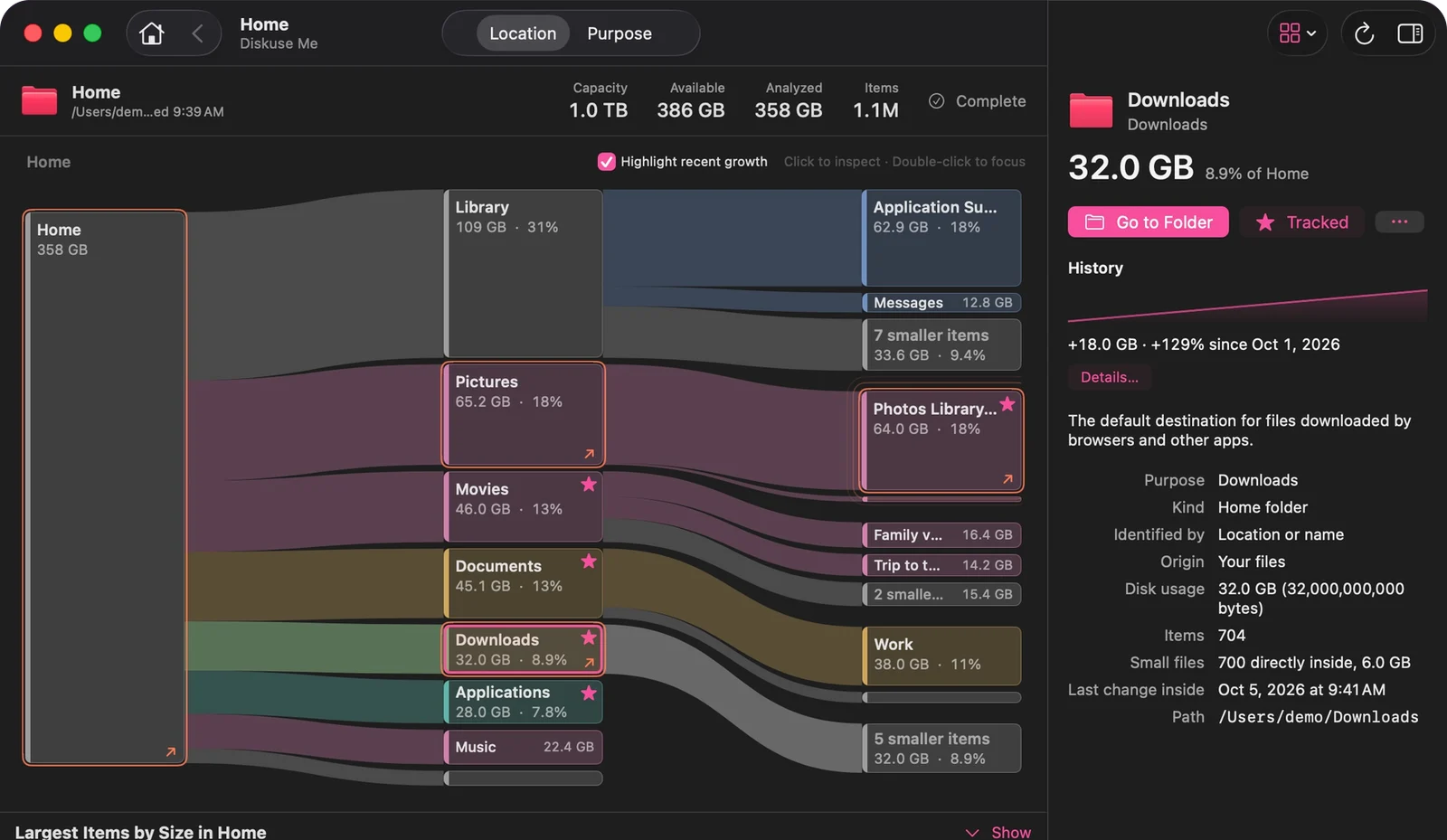
This is where comparing scans earns its place. Diskuse Me keeps a history for each location, and Recent Growth marks what has grown since the previous scan. In the example on the right, Downloads went from 14 GB to 32 GB, and the highlight leads straight to it.
The same data is often best removed by the app that owns it: Xcode, Docker and package managers have their own tools for that, and deleting inside their folders by hand can break things. Diskuse Me tells you what is there and hands the location to Finder. It doesn’t delete or recommend deleting.
Why “System Data” can be confusing
System Data is what macOS calls everything it doesn’t file under another category. It can include system files, caches, logs, app plug-ins and other data that isn’t one of your documents, so one large figure can hide several unrelated things.
Two honest limits apply to any third-party tool, Diskuse Me included. macOS protects some locations, and a scan can only report what it is allowed to read. Diskuse Me shows capacity, available space and analyzed size side by side, flags items it couldn’t read (“Some items unreadable”) rather than silently skipping them, and when macOS blocks access to a tracked item it records the size as unknown, not zero. Some protected locations may need Full Disk Access for a more complete scan. It cannot promise to account for every byte in the System Data figure, and it doesn’t offer to clear it.
What it can do is make the readable part concrete: user-visible folders, app data and developer storage get a name, a size and an explanation, so what is left over is smaller and easier to reason about.
See storage by location and by purpose
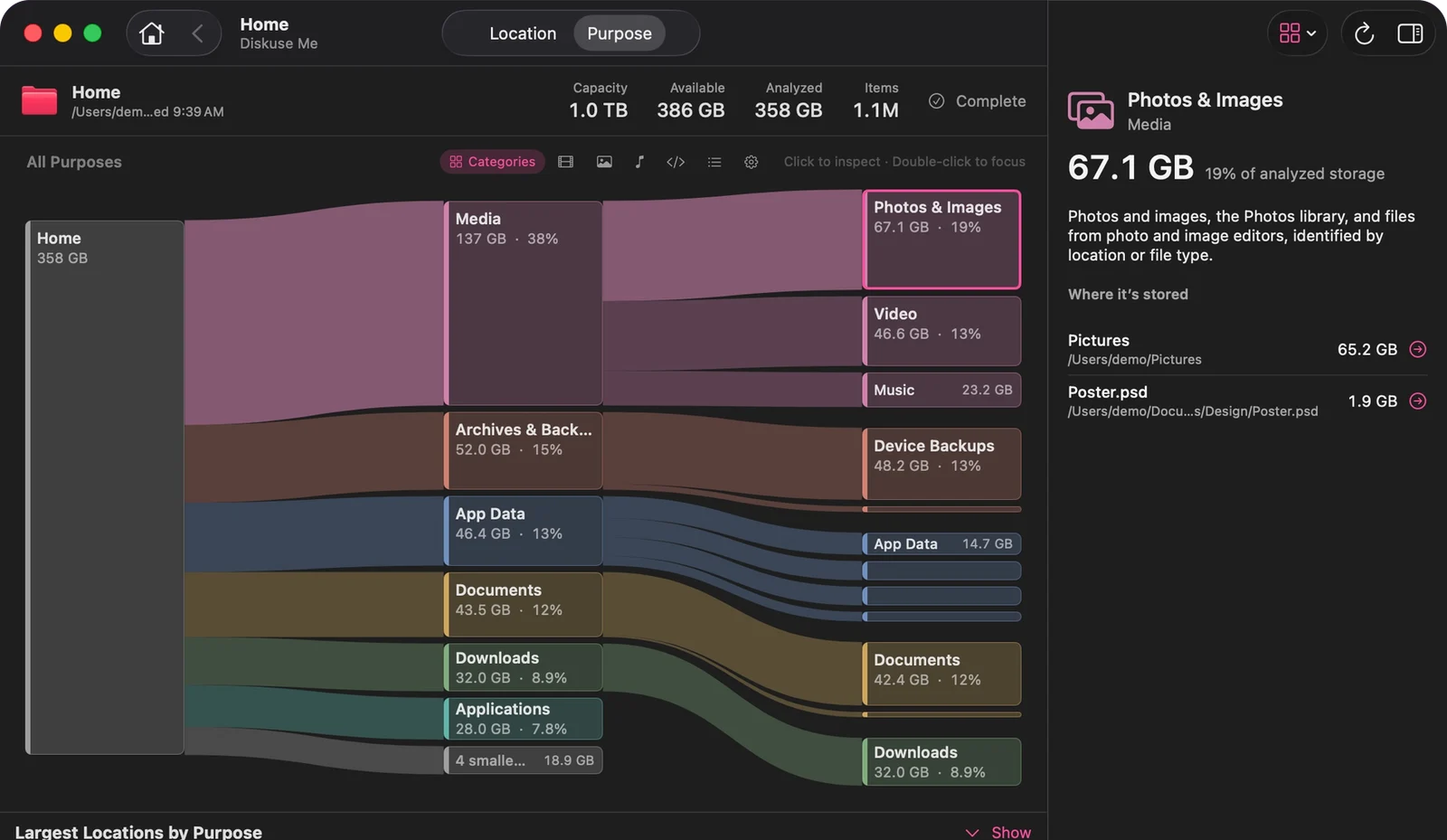
Diskuse Me reads the same scan two ways. Location follows real folders, so you know the exact path. Purpose groups by what the data is, so a Photos library, an iPhone backup and a pile of caches land in the categories that make sense of them. Largest Items ranks the biggest things in either view; there is a separate guide to finding the largest files and folders.
If you are choosing a tool, what to look for in a disk space analyzer sets out the criteria.
Find out what is taking your space
Where it is, what it belongs to, what is largest and what changed since the last scan. Read-only; nothing is deleted.
Download on theMac App StoreFree to download · Diskuse Me+ is an optional one-time upgrade · macOS 15 or later